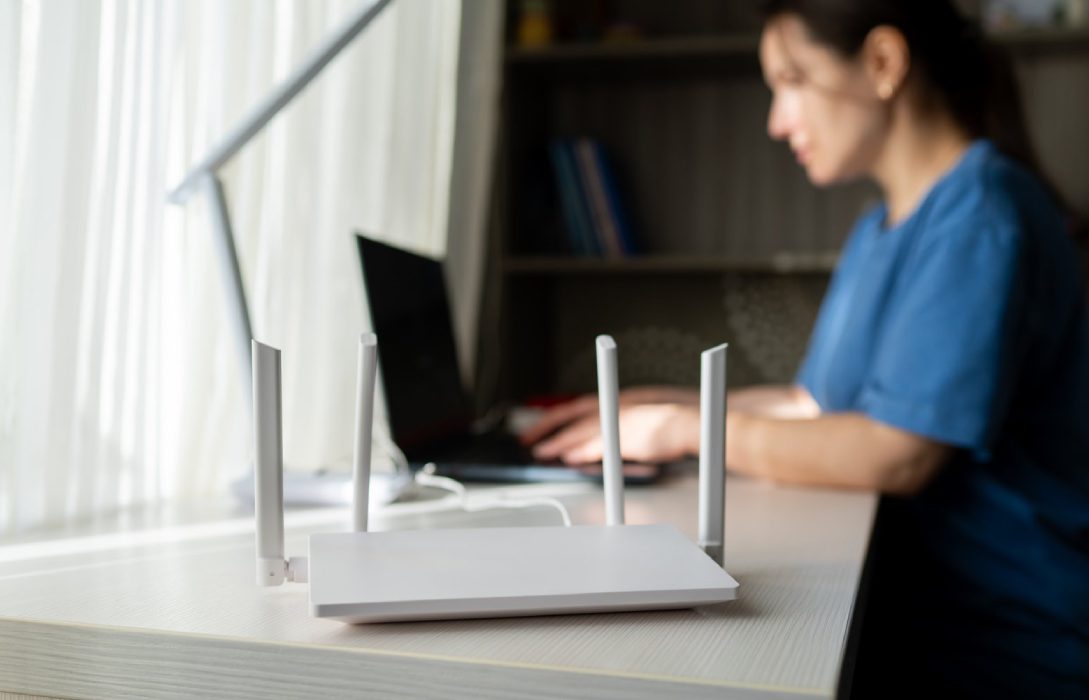
Remote work has become increasingly common, making a fast, reliable, and secure WiFi connection essential for productivity. Video conferencing, file sharing, cloud applications, and VPN access all require stable connectivity. Poor WiFi can lead to dropped calls, slow uploads/downloads, and reduced efficiency.
This guide provides a comprehensive approach to setting up WiFi for remote work, ensuring seamless performance for professional tasks.
Step 1: Assess Your Home Office Needs
- Identify the number of devices used for work: laptops, desktops, VoIP phones, and printers
- Determine bandwidth requirements for activities like video conferencing, cloud storage, and large file transfers
- Consider backup devices in case of connectivity issues
Tip: Knowing your specific needs helps select the right router, placement, and network setup.
Step 2: Choose a High-Speed Router
- Use a dual-band or tri-band router to separate work and personal devices
- WiFi 6 or WiFi 6E routers handle multiple devices efficiently and provide faster speeds
- Look for routers with QoS (Quality of Service) features to prioritize work traffic
Tip: Avoid outdated routers, as they may struggle to support remote work applications and multiple devices.
Step 3: Optimize Router Placement
- Place the router centrally or near your home office for maximum coverage
- Elevate the router on a shelf or desk to reduce interference
- Avoid placing routers near metal objects, microwaves, or walls that block signals
Tip: Central placement ensures strong, reliable WiFi throughout the home office area.
Step 4: Use Ethernet for Critical Devices
- Wired connections provide consistent high-speed performance
- Connect devices like laptops, desktops, and VoIP phones directly via Ethernet
- Reduces wireless congestion, improving performance for other devices on WiFi
Tip: Even one wired connection for a primary work device enhances overall network stability.
Step 5: Optimize Frequency Bands
- 2.4 GHz band: Longer range, good for low-demand devices like printers and smart home gadgets
- 5 GHz band: Faster speeds, ideal for work laptops, video calls, and streaming presentations
- Tri-band routers: Provide an additional 5 GHz band to reduce congestion in multi-device households
Tip: Assign devices strategically to bands based on performance needs.
Step 6: Enable Quality of Service (QoS)
- Prioritize bandwidth for work-critical devices and applications
- Reduce lag during video calls, file transfers, and cloud collaboration
- Assign lower priority to personal devices like gaming consoles or streaming TVs
Tip: QoS is particularly useful in homes with multiple people using WiFi simultaneously.
Step 7: Secure Your Network
- Use strong WPA3 or WPA2 passwords to prevent unauthorized access
- Enable a guest network for visitors to keep work traffic separate
- Keep firmware updated on routers and connected devices
- Consider VPN access for secure remote work connections
Tip: Security ensures your work data remains private and protected from cyber threats.
Step 8: Manage Network Traffic
- Monitor bandwidth usage to identify devices or applications consuming excessive resources
- Schedule large downloads or updates during off-peak hours
- Limit non-essential traffic during critical work hours to maintain speed and reliability
Tip: Network monitoring tools help maintain consistent performance for remote work tasks.
Step 9: Use Mesh WiFi for Large Homes
- For multi-floor homes, a mesh system ensures strong WiFi in the home office
- Place nodes strategically to eliminate dead zones
- Mesh networks provide seamless roaming for devices, which is useful for laptops or VoIP calls
Tip: A well-placed mesh system reduces interruptions during meetings or video calls.
Step 10: Test and Adjust
- Perform speed tests at your workstation to ensure adequate upload and download speeds
- Check latency for video calls and cloud applications
- Adjust router placement, mesh nodes, frequency bands, or QoS settings if needed
Tip: Regular testing ensures consistent performance and identifies potential issues before they affect work.
Advanced Tips for Remote Work WiFi
- Dedicated Work Network: Consider a separate SSID for work devices to minimize congestion
- Ethernet Backhaul for Mesh Systems: Ensures maximum stability and speed for work devices
- Redundant Connectivity: Backup options like mobile hotspots or secondary ISP connections
- Router Security Features: Enable firewalls, VPNs, and intrusion detection for sensitive work data
Conclusion
A reliable WiFi setup is critical for remote work. By selecting the right router, optimizing placement, prioritizing devices, and securing your network, you can achieve fast, stable, and secure connectivity for all work applications.
Proper planning and management ensure that remote work remains productive and stress-free, whether you are attending video meetings, sharing files, or using cloud-based applications.