A router’s performance depends not only on its hardware but also on how it’s set up and configured. Proper setup ensures fast speeds, reliable coverage, and secure connections for all devices. This guide provides practical router setup tips for home and office networks.
Step 1: Choose the Right Location
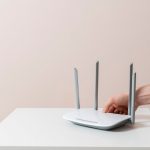
- Place the router centrally in your home for even coverage
- Elevate it on a shelf or table to reduce obstructions
- Avoid placing near thick walls, metal objects, and electronic devices that can interfere with signals
- Keep it away from mirrors, microwaves, and cordless phones
Tip: Proper placement is the first step to eliminating WiFi dead zones.
Step 2: Connect to Your Modem
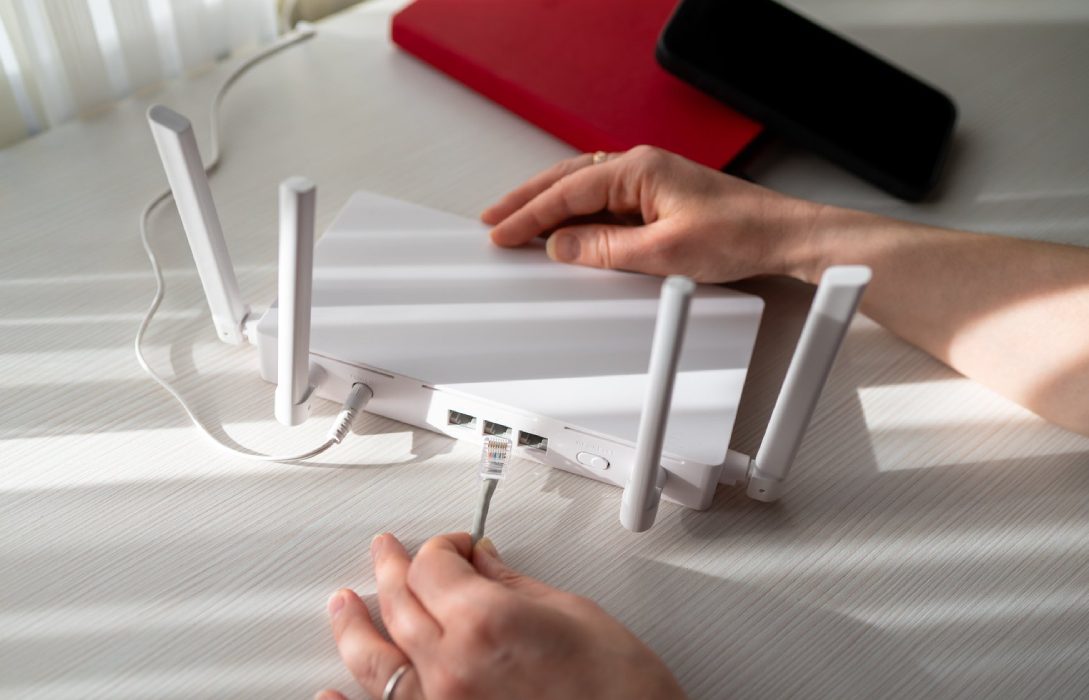
- Connect the router’s WAN port to your ISP modem via Ethernet
- Power on the modem first, then the router
- Confirm the router is connected to the internet before proceeding with configuration
Tip: A stable modem connection ensures smooth router setup.
Step 3: Configure Network Name and Password
- Change the default SSID (network name) to something unique
- Set a strong password using a mix of letters, numbers, and symbols
- Consider separate SSIDs for 2.4 GHz and 5 GHz bands for better management
- Enable guest networks for visitors to keep your main network secure
Tip: Strong security settings prevent unauthorized access and protect devices.
Step 4: Update Router Firmware
- Check the manufacturer’s website or app for firmware updates
- Updates fix bugs, improve performance, and enhance security
- Enable automatic updates if supported
Tip: Keeping firmware up-to-date ensures optimal performance and safety.
Step 5: Enable Security Features
- Use WPA3 encryption for maximum security (or WPA2 if WPA3 is not supported)
- Enable firewall settings to block unwanted traffic
- Activate parental controls to manage children’s internet usage
- Monitor connected devices regularly to detect suspicious activity
Tip: Security features protect your network from hackers and malware.
Step 6: Optimize WiFi Bands
- Use 2.4 GHz for long-range coverage and 5 GHz for high-speed activities
- Tri-band routers may offer a third 5 GHz or 6 GHz band for multiple devices
- Configure band steering if supported to automatically direct devices to the optimal frequency
Tip: Proper band management improves speed and reduces congestion.
Step 7: Set Up Quality of Service (QoS)
- Prioritize bandwidth for gaming, streaming, or work devices
- Assign higher priority to critical devices and applications
- Helps maintain consistent speed even when multiple devices are active
Tip: QoS ensures important applications get the bandwidth they need.
Step 8: Test and Adjust Router Placement
- Use a WiFi analyzer to check signal strength in different rooms
- Move the router or add mesh nodes/extenders to eliminate weak spots
- Adjust antennas if applicable to improve coverage
Tip: Testing placement ensures optimal coverage and performance.
Step 9: Connect Devices and Configure Advanced Settings
- Connect all devices to the appropriate band
- Enable MU-MIMO, beamforming, and other performance features
- Configure VPN, parental controls, and guest networks as needed
- Use the router’s app for monitoring bandwidth, device usage, and alerts
Tip: Advanced configuration maximizes speed, security, and network efficiency.
Step 10: Maintain Your Router
- Restart periodically to refresh connections
- Check for firmware updates monthly
- Monitor connected devices for unusual activity
- Keep the router clean and free from dust
Tip: Regular maintenance prolongs the life of your router and maintains optimal performance.
Conclusion
Proper router setup is crucial for achieving fast, stable, and secure internet. By choosing the right location, configuring security, optimizing bands, enabling QoS, and regularly maintaining the router, you can ensure excellent performance for streaming, gaming, remote work, and smart home devices.
Following these setup tips transforms your network into a reliable and efficient backbone for all your connected devices.