Streaming and gaming simultaneously is becoming increasingly popular, whether you’re live streaming on Twitch, YouTube, or Facebook Gaming, or just playing while streaming content at home. However, running both activities at once requires careful management of internet speed, bandwidth, and network settings to avoid lag, buffering, or drops in quality.
This guide explains how to optimize your network for simultaneous streaming and gaming.
Step 1: Understanding the Demands of Streaming and Gaming
When gaming and streaming simultaneously:
- Gaming requires low latency and consistent packet delivery
- Streaming requires high upload bandwidth to maintain video quality
- Both activities share the same network connection, potentially creating bottlenecks
Tip: Knowing the speed and bandwidth requirements for each activity is critical to avoid interruptions.
Step 2: Bandwidth Requirements for Streaming and Gaming
Gaming Bandwidth
- Download speed: 50–150 Mbps (varies by game)
- Upload speed: 10–20 Mbps for multiplayer and competitive games
Streaming Bandwidth
- Standard 720p: 3–5 Mbps upload
- Full HD 1080p: 5–10 Mbps upload
- 4K: 15–25 Mbps upload
Example:
Playing a 100 Mbps download game and streaming in 1080p requires:
- Download: 100 Mbps (gaming)
- Upload: 10–20 Mbps (gaming) + 5–10 Mbps (streaming) = 15–30 Mbps total
Tip: Ensure your internet plan can handle combined download and upload demands.
Step 3: Choosing the Right Internet Connection
1. Fiber
- Best option: Symmetrical speeds and low latency
- Supports multiple high-demand activities simultaneously
2. Cable
- Adequate for most scenarios
- Upload speed may limit streaming quality
3. 5G / Wireless
- Can work for casual streaming and gaming
- Speeds may fluctuate and cause interruptions
4. Satellite
- High latency makes simultaneous gaming and streaming difficult
- Only use in remote areas if no other options exist
Tip: Fiber connections are ideal for professional streaming and competitive gaming setups.
Step 4: Network Optimization
- Use a Wired Connection:
- Reduces latency and stabilizes both gaming and streaming traffic
- Quality of Service (QoS):
- Prioritize gaming device and streaming software
- Prevents other devices from consuming bandwidth
- Router Settings:
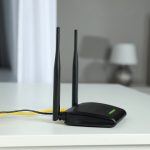
- Enable dual-band (2.4 GHz and 5 GHz) WiFi
- Consider WiFi 6/7 or mesh routers for multiple devices
Tip: Proper network optimization ensures smooth gameplay and high-quality streaming simultaneously.
Step 5: Device and Software Optimization
- PC/Console Performance:
- Ensure gaming device meets hardware requirements to avoid CPU/GPU bottlenecks
- Streaming Software Settings:
- Adjust bitrate, resolution, and frame rate based on available upload speed
- Use hardware encoding (NVENC, QuickSync) to reduce CPU load
- Background Applications:
- Close downloads, cloud sync, and heavy apps during gaming and streaming
Tip: Optimizing both devices and software ensures high-quality streams without affecting gameplay.
Step 6: Managing Multiple Users
- If others use the same network for streaming, video calls, or downloads, bandwidth is shared
- Use QoS or VLANs to isolate gaming and streaming devices
- Communicate with household members about peak gaming/streaming times
Tip: Bandwidth management avoids lag spikes and stream buffering.
Step 7: Recommended Internet Speeds
| Activity | Recommended Download | Recommended Upload |
|---|---|---|
| Gaming + 1080p Streaming | 100–150 Mbps | 20–30 Mbps |
| Gaming + 4K Streaming | 150–300 Mbps | 30–50 Mbps |
| Multiple Devices & Gamers | 200+ Mbps | 40–50 Mbps |
Tip: Always select a plan with extra bandwidth headroom to accommodate spikes in demand.
Step 8: Advanced Techniques
- Dual Internet Connections: Use separate ISPs for streaming and gaming
- Gaming VPN: Can improve routing in some regions, but may increase latency
- Network Monitoring Tools: Identify devices consuming excessive bandwidth
- Cloud Gaming Services: Ensure network can handle both gaming and streaming simultaneously
Tip: Advanced setups are useful for professional streamers or multi-gamer households.
Step 9: Troubleshooting Common Issues
- Lag or Latency Spikes: Check QoS settings and reduce background usage
- Streaming Buffering: Lower bitrate, switch servers, or increase upload speed
- Dropped Connections: Use wired connections and ensure router firmware is updated
- High Ping: Select servers closer to your location
Tip: Regular testing and monitoring ensure stable performance for both activities.
Conclusion
Streaming and gaming at the same time is possible with the right internet plan, network setup, and device optimization. Fiber connections, wired Ethernet, QoS configuration, and proper software settings make it feasible to play and stream without interruptions.
By understanding bandwidth requirements, optimizing network settings, and managing devices, gamers and streamers can enjoy smooth, high-quality performance for both gaming and live content creation.