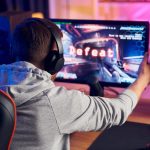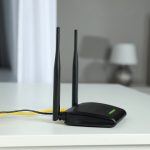
Even with a high-speed internet connection and optimized setup, gamers can still face issues like lag, high ping, packet loss, and sudden disconnections. These problems can ruin gameplay, especially in competitive matches.
Understanding how to troubleshoot internet issues is essential for maintaining a smooth and reliable gaming experience. This guide walks you through the most common problems and how to fix them effectively.
Step 1: Identify the Problem
Before fixing anything, you need to understand the issue:
- High Ping (Latency): Delay between your action and server response
- Packet Loss: Missing data causing stuttering or rubber-banding
- Lag Spikes: Sudden increases in latency during gameplay
- Disconnects: Losing connection to game servers
Tip: Use in-game network stats or tools like speed tests to diagnose the problem.
Step 2: Check Your Internet Speed
Run a speed test to measure:
- Download Speed
- Upload Speed
- Ping (Latency)
Compare results with your ISP plan. If speeds are significantly lower than expected:
- Restart your router and modem
- Disconnect unused devices
- Contact your ISP if issues persist
Tip: Regular speed testing helps identify performance drops early.
Step 3: Restart Your Network Properly
A simple restart can fix many issues:
- Turn off your modem and router
- Wait 30–60 seconds
- Turn on the modem first, then the router
- Reconnect your gaming device
This clears temporary glitches and refreshes your connection.
Step 4: Use a Wired Connection
- Switch from WiFi to Ethernet for better stability
- Wired connections reduce:
- Latency
- Packet loss
- Interference
Tip: Ethernet is the best solution for consistent gaming performance.
Step 5: Reduce Network Congestion
- Pause downloads, streaming, or updates
- Limit the number of connected devices
- Use QoS (Quality of Service) settings to prioritize gaming traffic
Tip: Less congestion = lower ping and smoother gameplay.
Step 6: Optimize Router Placement and Settings
For WiFi Users:
- Place router in a central location
- Avoid walls, metal objects, and electronics
- Use 5 GHz band for faster speeds
Router Settings:
- Update firmware regularly
- Change WiFi channels to reduce interference
- Enable QoS for gaming
Tip: Proper router setup improves signal strength and reliability.
Step 7: Check Game Servers
- Ensure the game servers are online and not overloaded
- Choose servers closest to your location
- Check official game status pages for outages
Tip: Sometimes the issue is not your network but the game server itself.
Step 8: Fix Packet Loss Issues
- Use a wired connection
- Replace damaged Ethernet cables
- Restart router and modem
- Update network drivers
If packet loss persists, contact your ISP.
Step 9: Update Software and Drivers
- Update:
- Network drivers
- Gaming device firmware
- Router firmware
- Ensure your operating system is up to date
Tip: Updates fix bugs and improve network performance and stability.
Step 10: Adjust DNS Settings
- Use faster DNS servers:
- Google DNS: 8.8.8.8 / 8.8.4.4
- Cloudflare: 1.1.1.1
- Improves server response times and connection reliability
Tip: DNS optimization can slightly reduce latency and connection delays.
Step 11: Check for Background Applications
- Close apps using internet:
- Streaming platforms
- Downloads
- Cloud backups
- Disable automatic updates during gaming
Tip: Freeing bandwidth ensures smooth and uninterrupted gameplay.
Step 12: Advanced Troubleshooting
- Change MTU Settings: Optimize packet size for your network
- Port Forwarding: Open required ports for specific games
- Disable VPN: VPNs can increase latency unless specifically optimized for gaming
- Check Firewall Settings: Ensure game traffic is not blocked
Tip: Advanced tweaks can help resolve persistent connectivity issues.
Step 13: When to Contact Your ISP
If problems continue after troubleshooting:
- Report consistent slow speeds or packet loss
- Ask about network congestion or outages
- Consider upgrading your plan if bandwidth is insufficient
Tip: ISPs can diagnose deeper issues beyond your home network.
Step 14: Common Mistakes to Avoid
- Ignoring router firmware updates
- Using weak or outdated WiFi routers
- Overloading network with multiple devices
- Playing on distant servers
- Relying on unstable wireless connections
Tip: Avoiding these mistakes prevents most gaming network issues.
Conclusion
Internet issues can disrupt even the best gaming setups, but with the right troubleshooting steps, most problems can be resolved quickly. By checking speeds, optimizing your network, reducing congestion, and maintaining updated devices, you can ensure a stable, low-latency gaming experience.
Consistent monitoring and proper setup will keep your connection fast, reliable, and ready for competitive gaming.