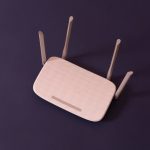
Restarting your network might seem simple, but doing it properly can resolve slow internet, dropped connections, and other network issues. A proper restart clears temporary glitches and ensures your devices reconnect efficiently.
1. Understand What Restarting Does
- Restarting your network resets your modem, router, and sometimes switches
- Clears cached data, temporary IP conflicts, and connection errors
- Helps devices reconnect to the ISP with a fresh session
2. Identify Your Network Devices
- Typical home network includes:
- Modem: Connects your home to the ISP
- Router: Distributes the connection to multiple devices via WiFi or Ethernet
- Switches or extenders: Optional devices that expand network coverage
Knowing your devices helps in performing a proper sequence restart
3. Power Down Devices in Correct Order
- Turn off computers, smart TVs, and other devices
- Turn off WiFi extenders or switches (if any)
- Turn off the router
- Turn off the modem
Waiting a few seconds between each step ensures all devices fully power down
4. Wait Before Restarting
- Leave devices off for 30–60 seconds
- This allows residual electricity to dissipate and clears cached memory
5. Power Up in Proper Sequence
- Turn on the modem first
- Wait for all lights to stabilize (usually 1–2 minutes)
- Turn on the router
- Wait for WiFi to become active
- Turn on switches or extenders
- Power up your devices (computers, phones, smart TVs)
This sequence ensures that devices get proper IP addresses and network resources
6. Check Connections
- Verify WiFi or wired connections on each device
- Use a speed test to confirm that internet performance has returned to normal
- Ensure devices connect automatically to the correct WiFi network
7. Consider a Scheduled Restart
- Some routers allow automatic daily or weekly restarts
- Helps maintain optimal performance and reduces network glitches
- Ideal for homes with multiple devices or heavy usage
8. Troubleshooting After Restart
- If internet is still slow:
- Check for ISP outages
- Inspect cables for damage
- Reset router to factory settings if needed
- Slow speeds after restart may indicate hardware issues or ISP problems
9. Benefits of Proper Network Restart
- Resolves temporary slow internet issues
- Clears IP conflicts and cache problems
- Ensures devices reconnect properly for stable performance
- Improves overall WiFi reliability
Conclusion
Restarting your network properly is more than just turning devices off and on. The sequence, wait times, and device order matter to fully reset the system. Steps to follow:
- Turn off devices in order: computers → extenders → router → modem
- Wait 30–60 seconds
- Power up in order: modem → router → extenders → devices
- Test connections and confirm performance
Following these steps can solve most common network problems, restore speed, and provide a stable home internet experience.
Visited 2 times, 1 visit(s) today