Internet issues are not always caused by your ISP or software—sometimes the problem lies in your hardware. Devices like routers, modems, cables, and network adapters play a critical role in delivering fast and stable internet. Proper troubleshooting can help identify and fix hardware-related problems effectively.
1. Understand Your Network Hardware
A typical home network includes:
- Modem: Connects your home to your ISP
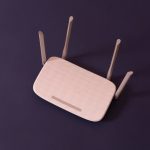
- Router: Distributes internet to devices via WiFi or Ethernet
- Cables: Ethernet or coaxial cables that carry data
- Devices: Computers, smartphones, smart TVs, etc.
Each component must function properly for optimal performance.
2. Check Physical Connections
- Ensure all cables are securely connected
- Look for loose, bent, or damaged cables
- Replace worn-out Ethernet cables with Cat5e or Cat6
Loose or faulty connections can cause slow speeds or frequent disconnections
3. Inspect Router and Modem Lights
- Routers and modems have indicator lights showing connection status
- Common indicators:
- Power: Device is on
- Internet/WAN: Connected to ISP
- WiFi: Wireless network active
Flashing or red lights may indicate connectivity issues
4. Restart Hardware Devices
- Turn off modem and router
- Wait 30–60 seconds
- Turn them back on in the correct order (modem → router)
This clears temporary errors and refreshes the connection
5. Test with a Wired Connection
- Connect a device directly to the router using Ethernet
- If speeds improve, the issue is likely WiFi-related
- If speeds remain slow, the issue may be hardware or ISP-related
6. Check for Overheating
- Overheated devices can cause performance drops
- Ensure proper ventilation
- Avoid placing routers in enclosed spaces or near heat sources
7. Update Firmware
- Outdated firmware can cause bugs and slow performance
- Access your router’s admin panel to check for updates
- Regular updates improve speed, stability, and security
8. Test Different Ports and Cables
- Try different Ethernet ports on your router
- Replace cables to rule out hardware faults
- Faulty ports or cables can limit speed
9. Reset Hardware (If Necessary)
- Perform a factory reset if problems persist
- Note: This will erase all custom settings
- Reconfigure your network after resetting
10. Check Network Adapters
- Ensure your device’s network adapter is working properly
- Update drivers on Windows or macOS
- Faulty adapters can cause slow or unstable connections
11. Replace Faulty Equipment
- Old or damaged hardware may not support modern speeds
- Consider upgrading:
- Router (WiFi 6 or newer)
- Modem compatible with your ISP
- New hardware improves performance and reliability
12. Use Surge Protection
- Power surges can damage network devices
- Use surge protectors or UPS systems to protect hardware
Conclusion
Troubleshooting internet hardware is essential for maintaining a fast and stable connection. Key steps include:
- Checking cables and physical connections
- Restarting devices and inspecting status lights
- Testing wired connections and replacing faulty components
- Updating firmware and resetting hardware if needed
By ensuring your hardware is functioning properly, you can eliminate many common internet issues and enjoy a reliable, high-speed connection.