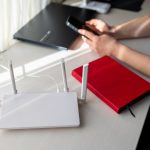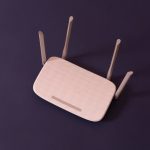
With the rise of remote work, a reliable and high-speed WiFi connection is essential for home offices. Poor connectivity can disrupt video calls, slow file transfers, and reduce productivity.
This guide provides a comprehensive approach to setting up WiFi for home offices, ensuring fast, stable, and secure connections for work, communication, and collaboration.
Step 1: Assess Home Office Needs
- Identify devices: laptops, desktops, VoIP phones, printers, and smart devices
- Determine bandwidth requirements for your workflow:
- Video conferencing: 3–5 Mbps per call
- Cloud storage and file transfers: 10–50 Mbps
- Streaming webinars or presentations: 5–10 Mbps
- Consider future growth: more devices or increased traffic
Tip: Knowing your needs helps you choose the right plan, router, and setup for your home office.
Step 2: Choose the Right Router
- WiFi 6 or WiFi 6E routers are recommended for multiple simultaneous devices
- Dual-band or tri-band routers reduce congestion and improve reliability
- Look for routers with QoS (Quality of Service) to prioritize work-related traffic
Tip: Investing in a high-performance router ensures smooth and uninterrupted work connections.
Step 3: Optimize Router Placement
- Place the router centrally and elevated near your home office for the best signal
- Avoid obstacles such as walls, metal furniture, and electronic devices
- For large homes, consider mesh nodes near the office for seamless connectivity
Tip: Proper placement reduces dead zones and improves video call quality and download/upload speeds.
Step 4: Use Wired Connections When Possible
- Ethernet connections provide stable, high-speed performance for laptops, desktops, or VoIP phones
- Reduces latency compared to WiFi for critical work tasks
- Can free up WiFi bandwidth for other household devices
Tip: Even one wired connection for your main workstation can significantly improve overall network performance.
Step 5: Secure Your Home Office Network
- Enable WPA3 or WPA2 encryption
- Use strong, unique passwords for the WiFi network and router admin panel
- Enable firewalls on both the router and devices
- Consider a VPN for secure remote access to company resources
Tip: Security protects sensitive work data and prevents unauthorized access.
Step 6: Optimize Frequency Bands
- 5 GHz band: Ideal for high-speed work tasks, video calls, and cloud storage
- 2.4 GHz band: Long-range coverage for devices farther from the router
- For heavy-use offices, tri-band routers allow separation of work traffic from household traffic
Tip: Assign work devices to the 5 GHz band for faster speeds and lower latency.
Step 7: Use Quality of Service (QoS)
- Prioritize work-related traffic such as video calls, VoIP, or cloud syncing
- Limit bandwidth for streaming, gaming, or downloads during work hours
- Prevent network congestion that can disrupt productivity
Tip: QoS ensures essential work tasks have the bandwidth they need, even with multiple devices online.
Step 8: Reduce Interference
- Keep the router away from microwaves, cordless phones, and Bluetooth devices
- Use WiFi analyzer tools to avoid overlapping channels with neighbors
- Enable DFS channels if supported for less crowded frequencies
Tip: Reducing interference improves connection reliability and reduces dropped calls or file transfer errors.
Step 9: Expand Coverage if Needed
- Use mesh WiFi nodes or extenders in large homes or offices far from the router
- Powerline adapters can provide stable connections using existing electrical wiring
- Ensure seamless roaming so devices stay connected as you move around the home
Tip: Extended coverage guarantees consistent speeds and reliability throughout the home office area.
Step 10: Regular Maintenance and Monitoring
- Keep router firmware updated for security and performance
- Reboot the router periodically to clear congestion
- Monitor network performance and connected devices using apps or router tools
Tip: Regular maintenance prevents connectivity issues and ensures consistent home office productivity.
Advanced Tips for Home Office WiFi
- Separate Work Network: Use VLANs or a separate SSID to isolate work traffic from household devices
- Bandwidth Management: Allocate more bandwidth to work-critical applications
- Device Prioritization: Give priority to your primary workstation or VoIP devices
- Network Mapping: Visualize signal strength and optimize node placement for maximum coverage
Conclusion
A well-configured WiFi setup is crucial for home office productivity. By selecting the right router, optimizing placement, using wired connections, securing your network, and managing traffic efficiently, you can ensure fast, reliable, and secure connectivity.
Proper planning and maintenance allow uninterrupted video calls, smooth cloud access, and stable internet for work, ensuring your home office operates as efficiently as a professional workspace.