A fast and reliable home WiFi network is essential for work, entertainment, and communication. Setting up home WiFi properly ensures consistent speeds, secure connections, and coverage throughout your home. Many users, however, struggle with WiFi issues such as dead zones, slow speeds, or unstable connections.
This guide provides a comprehensive, step-by-step approach to setting up home WiFi, from selecting equipment to optimizing coverage and security.
Step 1: Choose the Right Internet Service
Before setting up WiFi, ensure you have an internet connection that meets your household needs:
- Fiber: High-speed, low-latency option for streaming, gaming, and remote work
- Cable: Reliable speeds with moderate latency; widely available
- DSL: Slower than fiber or cable but suitable for small households
- Satellite: Ideal for rural areas, though latency may be higher
Consider your household usage: multiple devices, streaming in 4K, gaming, or remote work require faster connections and higher bandwidth.
Step 2: Select Your WiFi Equipment
The two essential components for a home WiFi network are:
- Modem: Connects to your internet service provider (ISP) and brings internet into your home
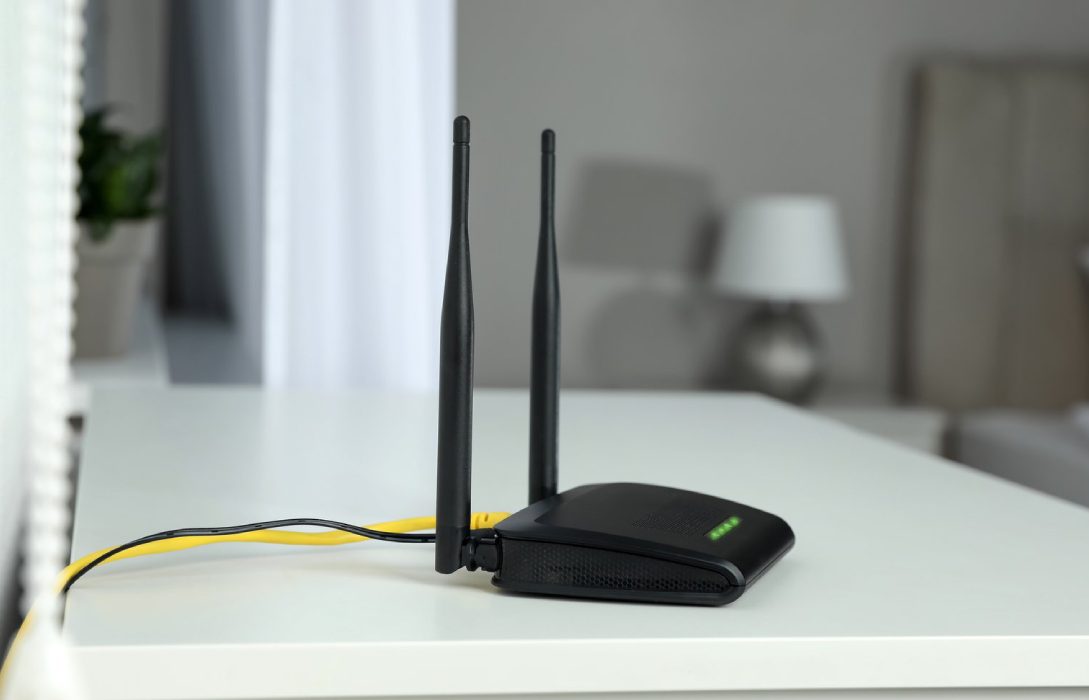
- Router: Distributes internet to multiple devices over WiFi and wired connections
Tips for choosing equipment:
- Select a router with dual-band (2.4 GHz & 5 GHz) or tri-band for better coverage and performance
- Look for WiFi 6 or WiFi 7 routers for faster speeds and support for multiple devices
- Ensure your modem is compatible with your ISP
Optional equipment:
- Mesh WiFi systems for large homes to eliminate dead zones
- Range extenders to boost signal in weak areas
Step 3: Connect Your Modem and Router
- Plug the modem into your internet source (cable, fiber, or DSL line)
- Connect the router to the modem using an Ethernet cable
- Power on both devices and wait for them to initialize (usually 1–2 minutes)
Your router will broadcast a default WiFi network. Note the network name (SSID) and password provided by the manufacturer.
Step 4: Configure Your WiFi Network
1. Access Router Settings
- Use the router’s IP address (usually 192.168.0.1 or 192.168.1.1) in a web browser
- Log in with the admin credentials provided
2. Change Network Name (SSID)
- Choose a unique, easy-to-remember name
- Avoid personal information in the SSID for security
3. Set a Strong Password
- Use WPA3 or WPA2 encryption
- Password should be at least 12 characters with letters, numbers, and symbols
4. Configure Frequency Bands
- 2.4 GHz: Longer range, slower speeds; ideal for smart home devices
- 5 GHz: Faster speeds, shorter range; ideal for streaming and gaming
Optional: enable guest networks for visitors to keep your main network secure
Step 5: Position Your Router for Optimal Coverage
- Place the router in a central location away from walls or large metal objects
- Elevate the router on a shelf or high surface for better signal
- Avoid placement near microwaves, cordless phones, or thick walls that block signals
For large homes, consider mesh WiFi systems or additional access points to eliminate dead zones.
Step 6: Connect Your Devices
- Scan for the WiFi network on your devices
- Enter the network password
- For smart devices, use the 2.4 GHz network for broader coverage
- Test connectivity on laptops, phones, TVs, and gaming consoles
Step 7: Test Your Connection
- Run speed tests on multiple devices to ensure expected speeds
- Check signal strength in different areas of your home
- Adjust router placement or use extenders if coverage is uneven
Step 8: Maintain Your WiFi Network
- Firmware updates: Regularly update your router to improve performance and security
- Monitor devices: Disconnect unused devices to optimize bandwidth
- Security checks: Periodically update passwords and check for unauthorized devices
Common Mistakes to Avoid
- Placing the router in a corner or behind furniture
- Using the default network name and password
- Ignoring firmware updates
- Overloading a single band with too many devices
- Failing to consider walls and interference when positioning the router
Advanced Tips
- Use Ethernet for high-demand devices like gaming PCs or streaming devices to reduce latency
- Enable Quality of Service (QoS) to prioritize traffic for critical applications
- Mesh systems: Seamlessly manage multiple access points for uninterrupted coverage
Conclusion
Setting up home WiFi involves more than just plugging in a router. Proper selection of equipment, secure configuration, optimal placement, and ongoing maintenance ensure fast, reliable, and secure connectivity for all your devices.
By following these steps, you can eliminate dead zones, reduce interference, and enjoy high-speed internet for work, streaming, gaming, and smart home devices throughout your home.