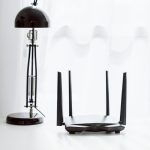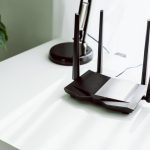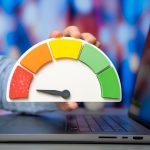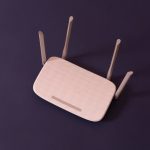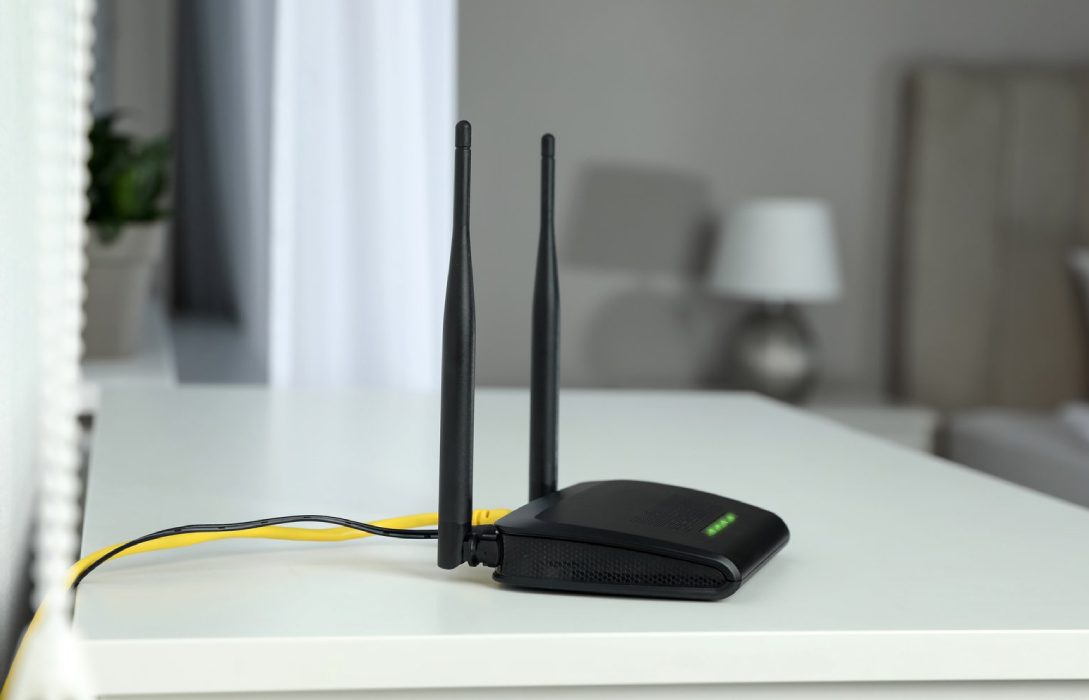
Your router is the heart of your home network, and optimizing its settings can dramatically improve internet speed, stability, and coverage. Even with a fast internet plan, misconfigured routers can slow down your connection. Here’s how to tweak your router for maximum performance.
1. Access Your Router Settings
- Use your router’s IP address (commonly
192.168.0.1or192.168.1.1) - Login with admin credentials (check your router manual if unknown)
- Navigate to sections like Wireless, Advanced, or QoS settings
Always make a note of original settings before changing anything.
2. Update Router Firmware
- Manufacturers release updates for security, stability, and speed improvements
- Firmware updates often fix bugs and improve device compatibility
- Check the manufacturer’s website or router app for updates
Keeping your router updated ensures peak performance and security.
3. Change WiFi Channel and Bandwidth
- WiFi interference from neighbors can reduce speed
- 2.4GHz band: Choose channels 1, 6, or 11 for minimal overlap
- 5GHz band: Less crowded, faster speeds; best for high-demand devices
- Adjust channel width to 20/40/80 MHz depending on your router and environment
4. Enable Quality of Service (QoS)
- QoS prioritizes certain devices or applications
- Essential for gaming, video calls, or streaming
- Prevents other devices from hogging bandwidth during critical tasks
5. Optimize Transmission Power
- Most routers allow adjusting transmit power
- Higher power improves range but can increase interference
- Fine-tune power to cover your home effectively without overlapping neighbors’ networks
6. Use Guest Networks Wisely
- Guest networks can prevent visitors from accessing your main network
- Can also divide bandwidth, so disable or limit guest network if unused
- Ensures maximum speed for primary devices
7. Enable Advanced Features
- Beamforming: Directs WiFi signals toward connected devices for stronger reception
- MU-MIMO: Allows multiple devices to communicate simultaneously
- Smart Connect: Automatically switches devices between 2.4GHz and 5GHz bands for optimal performance
8. Set Static IPs for High-Priority Devices
- Assign static IP addresses to devices like gaming consoles, PCs, or streaming boxes
- Reduces network conflicts and ensures stable performance for important devices
9. Limit Interference from Other Electronics
- Keep routers away from microwaves, cordless phones, Bluetooth devices, and thick walls
- Adjust antenna orientation for best coverage
- Reduce obstacles between the router and high-priority devices
10. Reboot Regularly
- Regular reboot clears memory cache and temporary glitches
- Improves speed and connection stability
- Schedule automatic reboot if your router supports it
11. Consider Router Placement
- Central and elevated location improves signal coverage
- Avoid corners, closets, or behind furniture
- Ensure line of sight to key devices whenever possible
12. Secure Your Router
- Strong passwords prevent unauthorized access that can slow down your network
- Enable WPA3 or WPA2 encryption
- Regularly monitor connected devices to identify intruders
13. Monitor and Test Performance
- Use speed test tools to check download/upload speeds after changes
- Monitor latency, jitter, and consistency
- Make incremental adjustments based on test results
Conclusion
Optimizing your router settings can dramatically improve internet speed and reliability without buying new equipment. Key tips:
- Keep firmware updated
- Adjust WiFi channels and bands to reduce interference
- Enable QoS and advanced features like beamforming
- Secure and monitor your network regularly
- Place the router strategically for maximum coverage
By fine-tuning your router, you can enjoy faster, smoother internet for streaming, gaming, remote work, and smart home devices.
Visited 1 times, 1 visit(s) today